Multi-Camera Switching for Corporate Events: PGM, PVW, and Beyond
A practical look at multi-camera switching for corporate shows, from camera shading to clean records and confident cues.
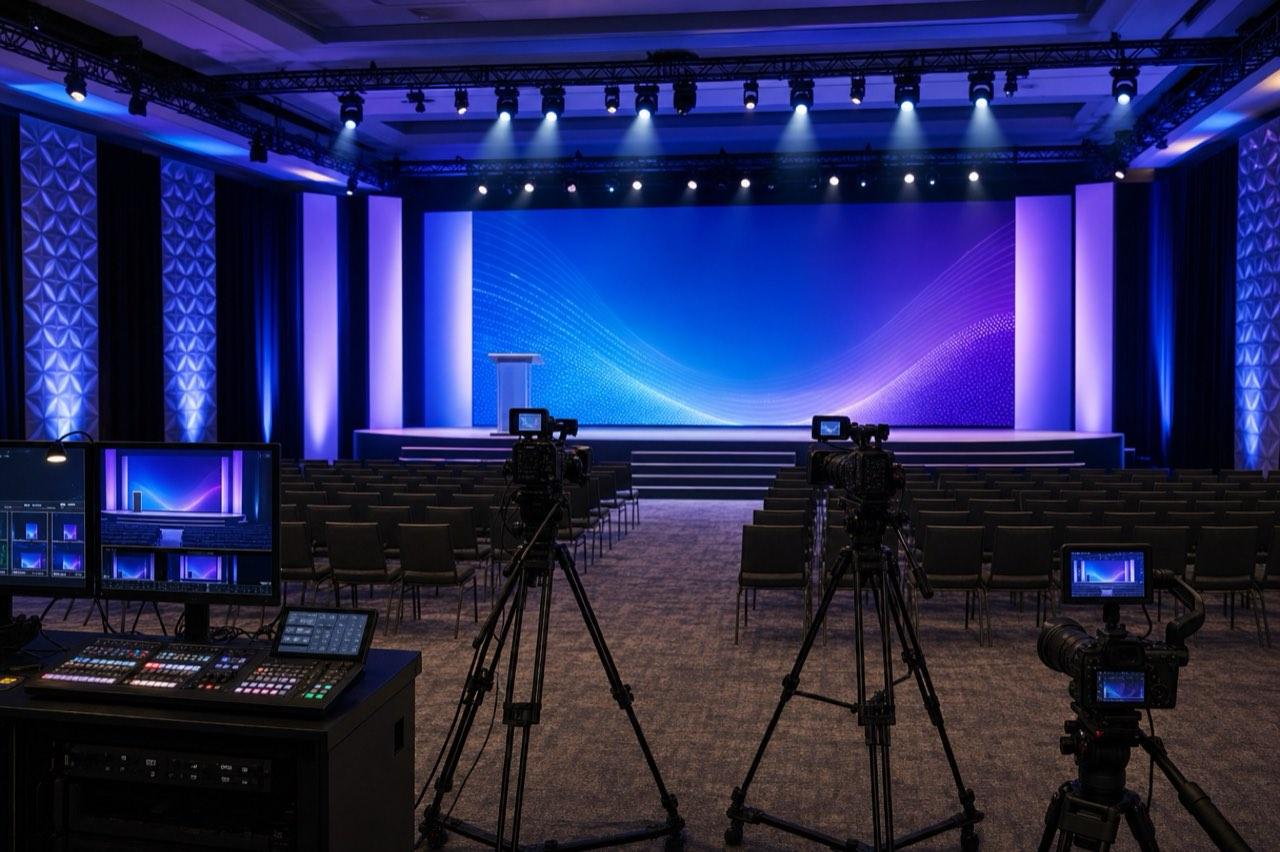
You can have great cameras and a strong stage look and still end up with a stream that feels chaotic. The missing piece is often the switching workflow: how the show moves from camera to camera, how cues are called, and how the team stays in sync when the run of show starts drifting. If you’re producing corporate events, multi-camera switching isn’t about fancy transitions. It’s about making the right cut at the right moment, every time, and building enough margin that the show still holds together when something breaks.
start with the output: what does “done” look like
Before we talk about switchers, tally lights, or camera counts, define what “done” means for this event. Corporate shows rarely have a single deliverable. You might have:
- an in-room IMAG feed (projectors or LED walls)
- a livestream (public, unlisted, or behind a login)
- a recording for internal distribution
- iso recordings for edit, highlights, or compliance
- a clean feed for press, a remote presenter, or overflow rooms
Each of those outputs has different tolerances. The in-room feed wants low latency and strong readability. The livestream wants stable audio-video sync and clean graphics. The recording wants consistent exposure, minimal focus hunting, and no accidental program cuts to a camera that’s not ready. When we build a switching plan, we work backwards from those deliverables so we can decide what actually needs to be switched live, what can be done in post, and where we need redundancy.
pgm and pvw: the two-bus mindset that keeps you out of trouble
In live switching you’ll hear “PGM” (program) and “PVW” (preview). Program is what the audience sees. Preview is what the technical director (TD) is looking at next.
The core discipline is simple: nothing goes to program unless it’s been checked in preview. That sounds obvious, but it’s the difference between a clean corporate show and a show where the audience keeps seeing a camera reframe or a presenter walking into position.
A few practical notes we rely on:
- Preview is where you validate focus, framing, and exposure. If you’re not looking at preview, you’re guessing.
- Preview is where you confirm graphics timing. Lower thirds, name keys, and slide overlays should be tested there first.
- Preview is where you catch stage surprises. A presenter stepping out of their light, an unplanned award handoff, or a mic handover can be anticipated if you’re scanning preview and multiview.
If you’re choosing gear, prioritize a switcher and monitoring setup that makes PGM/PVW easy and obvious. “Easy” is a safety feature.
camera count: pick it from coverage needs, not a wishlist
The common corporate multi-camera baseline is three cameras: a locked wide, a medium (or two-shot), and a roaming tight shot. That can work well, but only if the room, stage, and content support it.
When we decide camera count, we map the stage and the show:
- How many zones does the stage have? Lectern, center mark, panel table, demo area, audience Q&A mic.
- How many “must have” shots are simultaneous? A panel plus slide content, a product demo plus presenter reaction, a keynote plus interpreter screen.
- How many presenters are you dealing with and how disciplined are they? Some shows are rehearsed. Some are not.
A useful rule of thumb: if the stage has more than two active zones that can be used without warning, you either add cameras or accept that the stream will miss moments. The goal isn’t to cover every possible frame. It’s to cover the moments the producer will be held accountable for.
multiview monitoring: the operator’s “instrument panel”
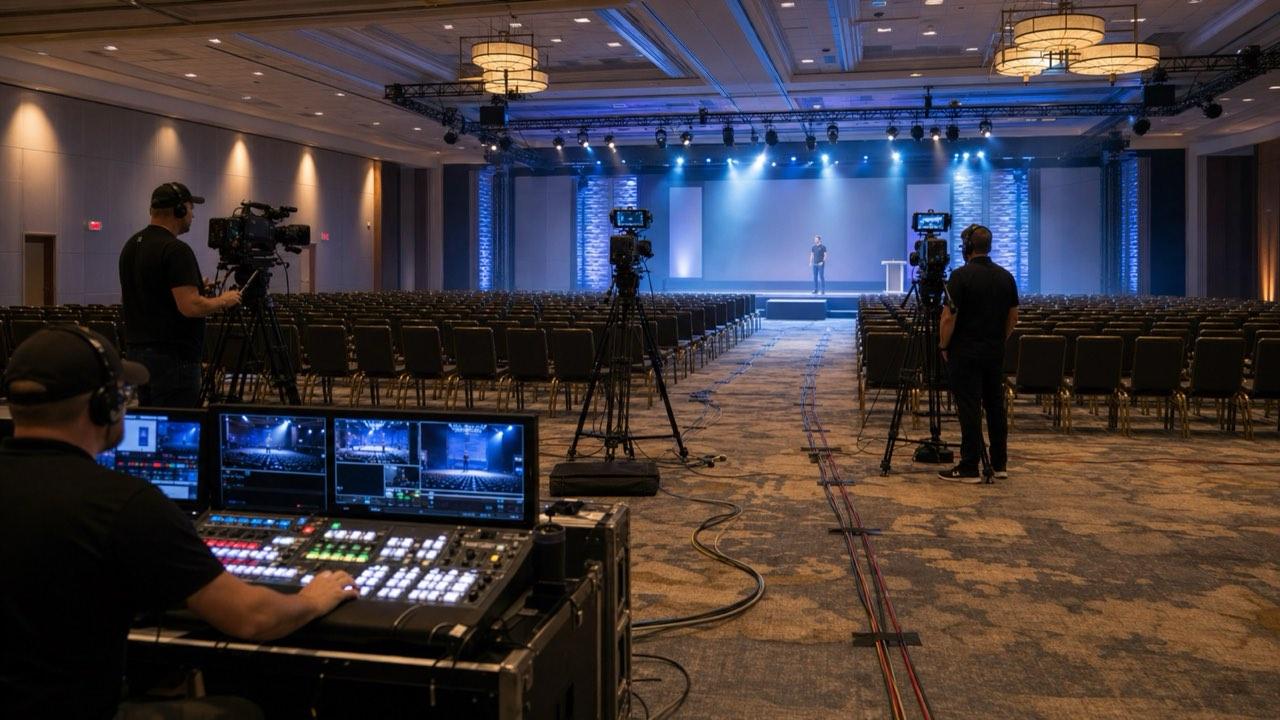
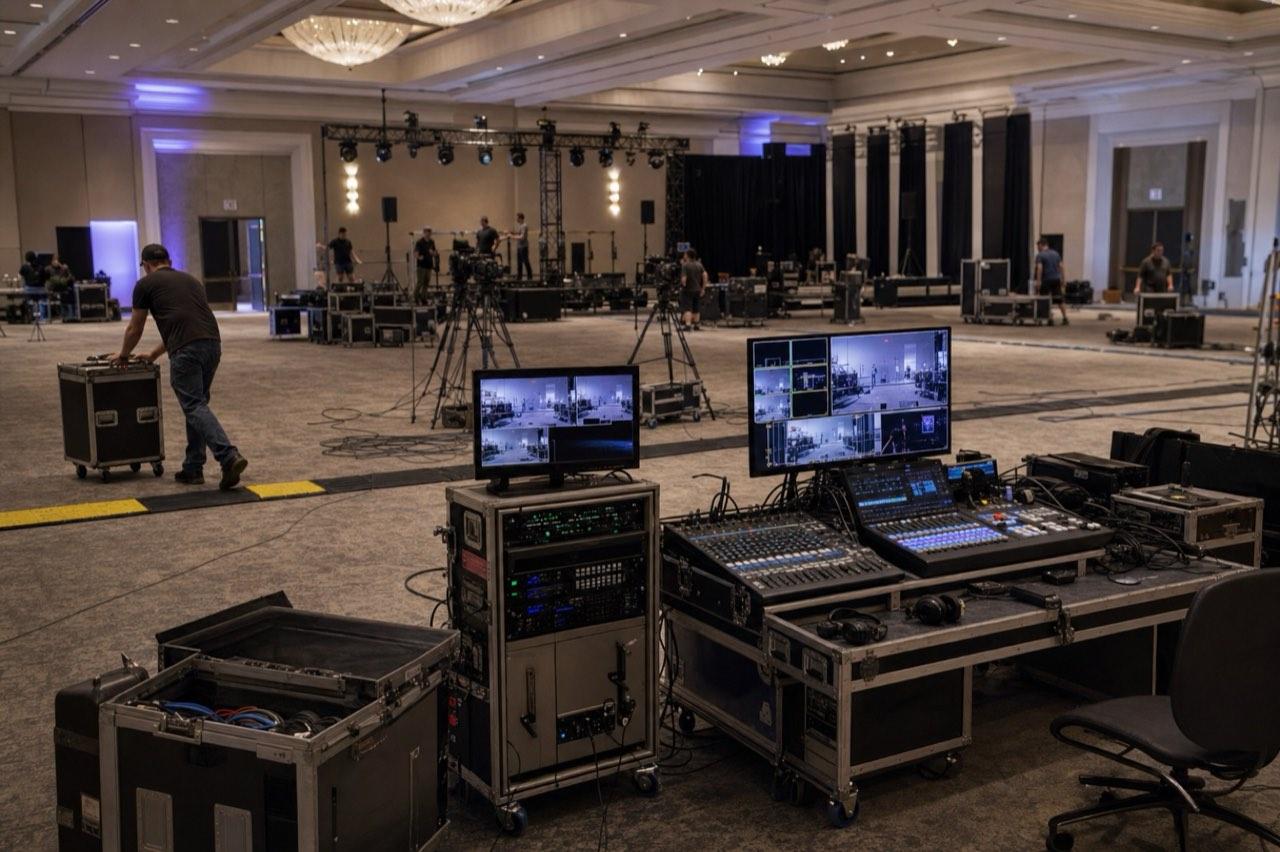
Multi-camera switching lives and dies on monitoring. We like a clean multiview layout that includes:
- all camera inputs
- slides/graphics source
- return/program
- preview
- audio meters (even basic ones are better than none)
- record status indicators where possible
The point is speed. When a cue comes, the TD needs to confirm that the next source is ready in preview and that program is safe. If the monitoring is cramped or confusing, the TD will either cut late or cut blind.
This is also where corporate shows differ from concerts. Corporate switching often includes slides and computers, and those sources can fail in ways cameras don’t: wrong display, sleep mode, notifications, resolution shifts, and mismatched frame rates. Monitoring is your early warning system.
shading and matching: the quiet work that makes the show look “expensive”
You don’t need theatrical grading to make corporate multi-camera look consistent. You do need cameras that agree with each other. The most common giveaways of a rushed setup are:
- one camera is warmer or greener than the others
- one camera is noticeably brighter or darker
- the wide has crushed blacks while the tight looks flat
- skin tones shift when you cut
Some of that is camera model mismatch, but a lot of it is white balance discipline and exposure choices. We typically do this:
- lock white balance to a measured value under show lighting (not auto)
- set a baseline exposure on the wide, then match the other cameras to it
- reduce “helpful” auto features that drift during a show (auto iris, aggressive auto gain)
- confirm that the background LED wall isn’t driving auto exposure into bad decisions
If you’re mixing camera types (say, a broadcast camera and a mirrorless), be honest about what that means. It can still work, but matching is harder, and the switch will look more abrupt.
comms: if the cameras can’t hear cues, switching becomes guessing
Corporate shows can be deceptively cue-heavy. Walk-ons, stingers, name keys, video rolls, stage manager calls, and remote speaker handoffs all land at specific moments.
We like a comms plan that answers two questions:
- Who calls the shots?
- Who needs to hear those calls?
At minimum, the TD and camera ops need clear comms. Often, graphics and playback do too, because the timing between a slide change, a lower third, and a cut is what makes the stream feel intentional.
If you can only do a small comms setup, keep it simple and reliable. A complicated comms layout that doesn’t get used is worse than a basic one that works all day.
switching style for corporate: fewer tricks, more intent
A corporate audience notices content and clarity more than production flair. We usually aim for a clean style:
- cut on meaning (new speaker, new point, new moment)
- hold shots long enough to feel stable
- avoid constant “hunting” between cameras
- use dissolves sparingly (often for walk-ons or mood)
- keep the wide as a safety shot, not the default
One of the best habits a TD can have is to pause before a cut. If nothing has changed, don’t cut just to cut. Let the camera ops settle, let the presenter land a point, and then move.
graphics and slides: treat computers as fragile sources
Slides are the heart of many corporate events, and they’re also where a lot of switching plans fail. The switching team needs a dedicated way to handle slides so the stream doesn’t degrade into “camera on screen” unless that’s the intended look.
We typically plan for:
- a direct slide feed into the switcher
- a way to scale/convert that feed to the right format
- a method to keep notifications off and screen savers disabled
- a clear ownership line for advancing slides (presenter, clicker, operator)
If the show includes multiple presenters with different laptops, assume format changes and test them. A last-minute resolution switch can cause a black frame, a cropped slide, or a sync issue right when the CEO starts talking.
records: program, clean, and iso (and why each exists)
Recording is where corporate clients often judge you after the event. A stream can be “good enough” in the moment, but recordings live longer, get replayed, and get edited.
We plan recordings around three layers:
- Program record: exactly what went out live
- Clean record: program without lower thirds or with minimal graphics (useful for re-versioning)
- ISO records: individual camera feeds for re-cuts and fixes
You don’t always need all three, but you should decide before the show. The “we’ll figure it out later” plan is how you end up with a single file that has burned-in graphics, clipped audio, and no way to fix a bad cut.
If iso recording is in scope, we also plan storage and media management. Multi-camera ISOs are data-heavy, and the failure mode is brutal: you think you’re recording, but you’re not, or you drop frames and find out later. We prefer recorders and workflows that make record status obvious and that can survive a brief hiccup without corrupting the file.
latency and IMAG: don’t let the room and the stream fight each other
If you’re feeding in-room screens and a livestream, you have to think about latency. Even a few frames of delay can become noticeable in the room if the audience can see the stage and the screens at the same time.
A few practical approaches we use:
- keep the in-room path as direct as possible
- avoid unnecessary conversion steps
- confirm that the LED wall processor and the switcher aren’t introducing avoidable delay
- keep the livestream encode path separate from the IMAG path when needed
Sometimes the right answer is to prioritize the room and accept that the livestream has more latency. The audience in the room can’t unsee it if the lips don’t match the sound.
reliability: build a plan for the two failures you actually see
You can plan for every theoretical failure and still miss the ones that happen all the time. In corporate multi-camera, the usual culprits are:
- a camera loses power or a cable gets bumped
- the slide feed changes format or drops
- comms become noisy or stop
- a recorder stops or fills up
- a presenter goes off script and the camera team loses them
We like to decide, in advance, what the “safe picture” is. Usually it’s a locked wide that’s always framed and always exposed. That camera becomes your get-out-of-jail card while you fix the issue.
We also like a simple checklist that the team can execute under stress:
- confirm program is stable
- confirm audio is still good
- confirm record is still rolling
- communicate the issue clearly (what failed, what’s the workaround)
That checklist isn’t glamorous, but it’s how you keep a show from spiraling.
rehearsal and cues: the cheapest place to save the show
If you can get any rehearsal time, spend it on the switching workflow, not just camera shots. The biggest wins usually come from cue clarity:
- Who calls the walk-on?
- When does the lower third go?
- Do we take slides full, or picture-in-picture?
- What’s the “go to wide” moment during applause or transitions?
A short rehearsal can also surface stage lighting problems that directly affect cameras: strong backlight, LED wall brightness that blows out faces, or a lectern light that doesn’t reach the presenter. Fixing those before doors is far easier than trying to shade your way out of it live.
staffing: match the crew to the complexity, not the gear list
A switcher doesn’t run itself. A three-camera show with slides, graphics, playback, and records can overwhelm a small team if roles aren’t clear.
For many corporate events, the functional roles are:
- TD/switcher: runs PGM/PVW and calls cuts
- shader (sometimes combined): matches cameras and keeps exposure stable
- graphics/playback: manages lower thirds, roll-ins, and slide sources
- audio A1/A2: keeps program audio clean and consistent
- camera ops: hold shots and respond to cues
Sometimes one person covers multiple roles, and that can still work if the show is simple. But when the show has lots of moving pieces, stacking too many responsibilities on one operator is how you miss cues. We’d rather simplify the show than pretend a single operator can do everything at once.
the handoff: how we keep everyone aligned on show day
Even with the right equipment and a solid crew, the show can drift if the handoff is messy. We like a short pre-show alignment that covers:
- the run of show and the cue cadence
- which shots are “must hit”
- what the fallback picture is
- what the client expects to receive after the show (program file, clean file, isos)
- who makes the call if the schedule changes
Five minutes of alignment reduces the amount of mid-show improvisation, and improvisation is where switching mistakes happen.
a practical build you can scale up or down
If you want a starting point that works for a lot of corporate keynotes and panels, we often build around:
- a locked wide that is always safe
- one tight camera dedicated to the lectern or center mark
- one roaming or second tight camera for reactions, audience Q&A, or panel
- a clean slide feed
- a switcher with a clear multiview and easy PGM/PVW workflow
- comms that actually get used
From there, we scale based on the show: more cameras for multiple stage zones, dedicated shader for high-contrast lighting, additional records for post needs, and redundancy when the event can’t afford downtime.
closing thought: switching is a production system, not a button push
When multi-camera switching feels easy, it’s usually because someone built a system: monitoring that makes sense, comms that are clean, roles that are clear, and a run of show that respects how live cues work. That’s the difference between a stream that looks accidental and a stream that looks intentional.
If you want EventProSource to spec a multi-camera switching and recording plan for your corporate event, we can build a plan that covers the camera positions, the switching workflow, and the record/backup strategy. Email hello@eventprosource.com for a 24-hour quote and a practical recommendation based on your run of show.