Camera Package for Corporate Keynotes: 2 to 6 Cameras
A practical guide to choosing 2 to 6 cameras for a corporate keynote, including shot coverage, slide capture, and ballroom placement realities.
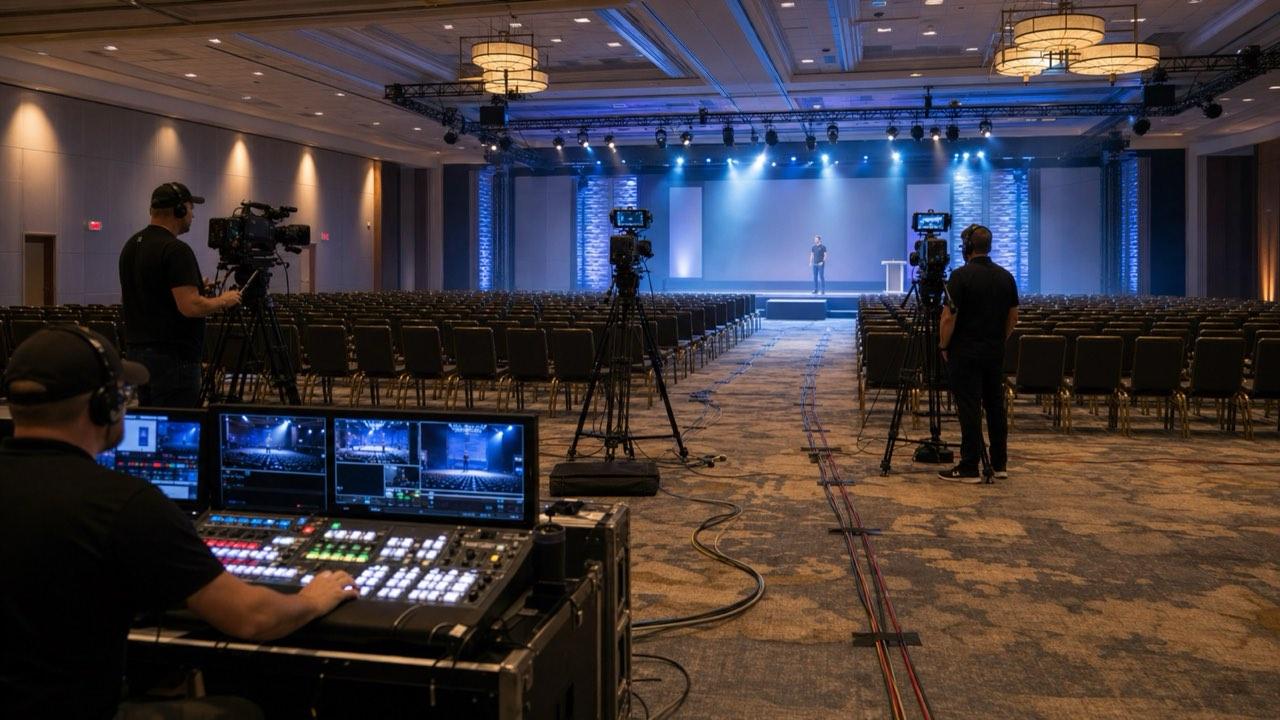
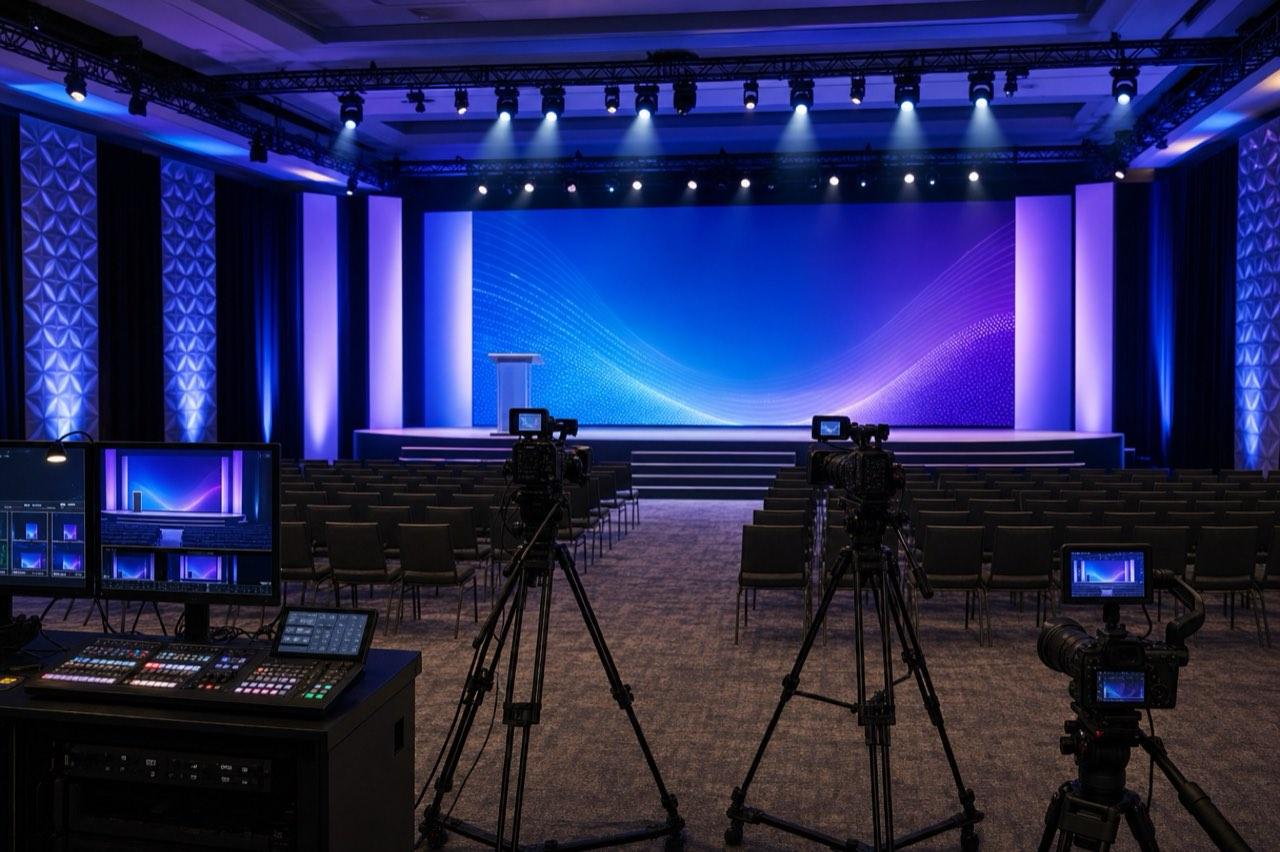
Corporate keynotes usually fail for one of three reasons: the audience can’t see the content, they can’t hear the speaker clearly, or the stream looks like an afterthought. Most of the time it traces back to the camera plan. A “two cameras and hope” approach works until the CEO starts pacing, the slides go unreadable, and your remote attendees spend 45 minutes staring at a wide shot.
Start with the deliverable, not the gear list
Before you talk camera count, get crisp on what the client is actually publishing.
- In-room only: You’re supporting IMAG (image magnification) on screens in the room. Recording may be optional.
- Live stream to an internal audience: Consistent shot coverage matters more than cinematic moves.
- Hybrid with a replay requirement: You need clean audio and a stable program feed, plus isolated recordings if edits are expected.
- Multi-speaker keynote + audience Q&A: Your plan has to cover audience mics and reaction shots without turning into chaos.
This is also where you decide if the program needs graphics in the switch (lower thirds, name keys, agenda bugs) or if it’s strictly camera cuts plus slides.
The three shot types every keynote needs
No matter the room size, you’re chasing the same three looks.
1) The safe wide
This is the “nothing else is working” shot. It has to hold if a camera operator loses the speaker or a handheld shot goes unusable. Put it on sticks, lock exposure, and keep it out of aisles where people will stand.
2) The speaker medium
This is your workhorse. It’s the shot that makes the keynote feel intentional. It should frame the speaker from mid-torso up, with enough headroom that you can follow pacing without hunting.
3) The content shot
If slides matter, you need a plan for them. Sometimes that’s a clean screen feed (best). Sometimes you’re forced to shoot the projection or LED wall. Either way, treat “content visibility” as a separate deliverable, not a bonus.
When you get these three covered, every extra camera is about polishing the show: audience reactions, cutaways, and avoiding repetitive angles.
2-camera package: when it works, and what it can’t do
A 2-camera keynote is possible, but it’s narrow.
Best use case:
- Smaller rooms
- Single speaker at a lectern
- Minimal slide reliance
- No audience Q&A on camera
Typical layout:
- Camera 1 (wide / safety): Center back of room, elevated if possible
- Camera 2 (speaker medium): Off-center, tighter shot, follows the speaker
Hard limits:
- If the speaker moves a lot, your medium shot becomes unstable.
- Slides are either a separate feed (if you have it) or they’ll be unreadable on stream.
- Audience shots don’t exist, so the show feels flat.
If the client is counting on a broadcast-style keynote feel, 2 cameras is usually where expectations and reality diverge.
3-camera package: the practical baseline
Three cameras is where the program starts to feel like an actual production instead of a documentation effort.
Typical layout:
- Cam 1: Locked wide / safety
- Cam 2: Speaker medium from house right
- Cam 3: Speaker medium or tight from house left
With two opposing medium angles, you can cut without repeating the same look, and you have a backup if one operator gets blocked.
Where this package shines:
- Corporate keynotes with pacing speakers
- Panels where you need a little flexibility
- Events where you want a clean recording, not just a live feed
Common add-on:
- A dedicated slide feed into the switch so remote viewers can read the deck (if the playback laptop and signal path allow it)
If you’re building a package for a typical ballroom keynote with confidence, 3 cameras is the place to start.
4 cameras: add audience or add a roaming angle
Four cameras is the first “choice” number. You can put the extra camera where it solves your biggest problem.
Two common moves:
Option A: add an audience reaction camera
Put a long lens on it, aim it at the first few rows, and capture applause, laughter, and the energy the remote audience can’t feel.
Option B: add a roamer
A handheld or gimbal camera can make a corporate keynote look expensive fast, but it can also make it look messy if the operator is inexperienced or the room is tight.
Rules of thumb for roamers:
- Give them a clear lane and a plan for where they can move
- Keep them off the main aisles during seating and exits
- Don’t rely on the roamer as your only tight shot
If your room has good access and the client wants a “live event” feel, a roamer is worth it. If the room is cramped, use the fourth camera on sticks and get predictable coverage.
5–6 cameras: broadcast feel, multiple deliverables, and risk management
Once you’re at 5 or 6 cameras, you’re usually doing at least one of these:
- A high-profile keynote where every angle matters
- A hybrid program with real audience participation
- Multiple speakers, multiple segments, and a tight show flow
- A program that needs both a clean record and dynamic live cuts
A common 6-camera layout:
- Cam 1: Locked wide
- Cam 2: House right medium
- Cam 3: House left medium
- Cam 4: Tight center (long lens) for facial expressions and mic moments
- Cam 5: Audience reaction
- Cam 6: Roamer or backstage/podium entry angle
At this level, you’re also thinking harder about:
- Operator experience and comms
- Cable paths and safety
- Lens choices (long glass needs stable platforms)
- How to keep the show consistent when lighting changes between segments
Slide capture: treat it like its own camera
If slides matter, don’t “wing it.” There are two clean ways to handle them:
Best: take a dedicated feed
Feed the presentation laptop (or the media server) into the switcher and treat it as a source alongside cameras.
Backup: shoot the screen
If you have to shoot projection, lock white balance, avoid keystone angles, and accept that it will never look as clean as a direct feed.
If you want a deeper run-through on content and aspect ratios, it helps to understand how LED walls and screens behave with different resolutions and layouts. See our guide on LED wall content resolution and aspect ratios.
Camera placement in ballrooms: what usually bites you
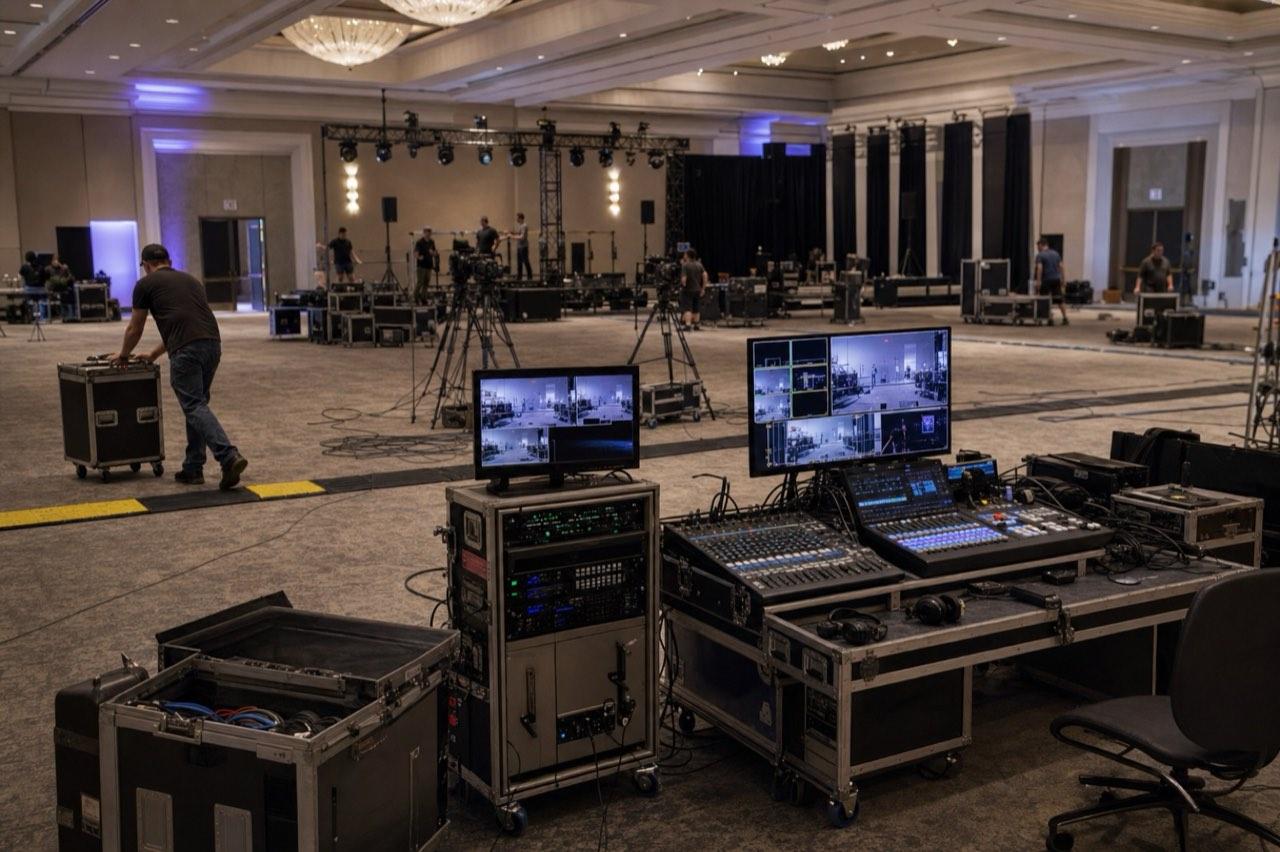
Ballrooms look easy until you try to place three tripods and still leave fire lanes.
Common pitfalls:
- Cameras on carpet without platforms: long lenses will wobble when people walk.
- Back-of-room center camera blocked by a FOH table: plan your sight lines early.
- No cable plan: last-minute runs across walkways create trip hazards.
- Operators without comms: you’ll get random zooms and missed cues.
If you’re doing anything beyond a locked wide, budget time for rehearsal and comms checks.
Switching and recording: don’t forget the boring parts
Camera count doesn’t matter if your switching plan is weak.
Decide early:
- Are you producing a program cut live?
- Do you need ISO recordings of each camera?
- Is there a confidence monitor for the stage manager or speaker prep area?
If the keynote is part of a broader hybrid program, it’s worth mapping the whole signal chain and staffing plan. Our hybrid event production stack is a good reference for how the pieces fit.
Audio note: your stream lives or dies on the mic plan
Even though this post is about cameras, the stream will be judged on audio.
If you’re running wireless lavs, handhelds, IFBs, or a panel mic setup, plan RF and mic coverage like a separate system. For panel-heavy programs, our microphone package guide for panels can save you from last-minute scrambling.
A quick checklist before you lock the package
Here’s what I confirm before I tell a client “2 cameras” or “6 cameras” with a straight face:
- What’s the deliverable: in-room, stream, recording, or all three
- How important are slides to the message
- Will the speaker pace or stay on a mark
- Any audience Q&A that needs coverage
- Room size, camera lanes, and whether platforms are allowed
How EventProSource scopes keynote camera packages
If you’re producing a corporate keynote in Manhattan, Brooklyn, Jersey City, or anywhere in the Northeast where venue rules and load-in windows are tight, we scope camera packages around the show flow and the room constraints first.
For broader production planning, our corporate A/V checklist for NYC venues and union labor planning guide are useful when you’re building a realistic schedule.
If you want a camera package that fits your room, your agenda, and your streaming requirements, email hello@eventprosource.com. We’ll turn around a practical scope and a 24-hour quote, then walk you through the tradeoffs so you’re not guessing on show day.